Get Mac OS X Support, Tips, Tricks, Tutorials, Guides & How To's right in to your Mac OS X Dashboard.
↓ Download
Get your daily source for fresh tips, tutorials, tools, news, software, shareware, freeware, and all Mac things !
Showing posts with label Tips. Show all posts
Kludget Engine
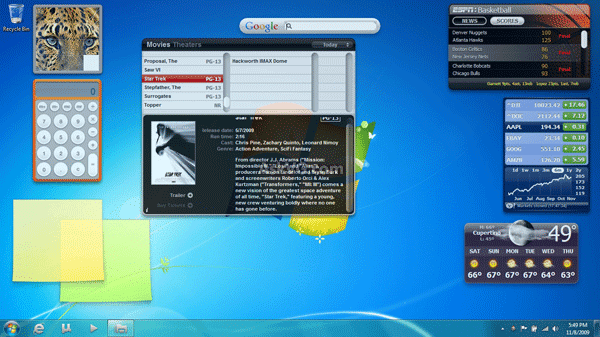
If you are a fan of Mac OS Dashboard widgets and want to use them on your Windows or Linux Desktop, you must try Kludget.
Kludget Engine is a free utility for Windows and Linux which allows users to use Apple Mac OS Dashboard widgets on their Desktop.
It brings best features from Yahoo's Widget Engine, Microsoft Gadget, Google Desktop, Opera Widgets and Mac OS Dashboard Widgets.
You can download it using following link:
http://kludgets.com/download
http://kludgets.com/widgets
Features List:

Kludget Engine is a free utility for Windows and Linux which allows users to use Apple Mac OS Dashboard widgets on their Desktop.
It brings best features from Yahoo's Widget Engine, Microsoft Gadget, Google Desktop, Opera Widgets and Mac OS Dashboard Widgets.
You can download it using following link:
http://kludgets.com/download
http://kludgets.com/widgets
Features List:
- MacOS Dashboard Widgets support
- Opera Widgets support
- Open Source (LGPL)
- Cross Platform (Windows,Linux)
- WebKit Technology (HTML5)
- QT Nokia Framework

Enable a Hidden Disc Eject Menu

If you use a lot of DVD’s or CD’s on a regular basis, you may find some use enabling a hidden disk eject menu item. Once enabled, you’ll have a Finder pull down menu that lists discs, and selecting a disk from the menu ejects it:
Hit Command+Shift+G to bring up the Go To Folder window, using the following path:
/System/Library/CoreServices/Menu Extras/
Locate and double-click the menu item named “Eject.menu”
To remove the Eject menu, just hold down the Command key and drag it out of the Mac OS X menu bar.
The Disk Eject menu works in OS X Lion but is probably only going to be useful for Mac owners who have a CD or DVD drive, because it doesn’t seem to show external USB devices in testing. It also seems to be connected to the same eject mechanism of just dragging a disk to the Trash, so if you have a stuck disc it’s probably not going to be as effective as a forced eject.
On a side note, once you’re in the Menu Extras folder you will find a variety of other menu bar items you can add by double-clicking. Most of these are also available by enabling various settings in System Preferences, but Eject seems to be unavailable elsewhere.
Rearrange the Status Items

You can easily rearrange the status items in your Mac OS X Menu bar, simply hold Command and drag the icons to the desired location within the menubar. You can move just about anything, except for Spotlight and some third party apps, which will stay stubbornly in place.
This is a good alternative to just simply removing items, and is a nice minor customization for those of us who like to keep things as personalized as possible. Align all similar items by groups and functions, arrange by shape or color, get creative.
Remove Icons from the Menu Bar
If your Mac menu bar is starting to resemble an icon farm, remember that you can remove items from the menu bar by holding down the Command key and dragging items out of the menu. The icon will disappear into a puff of dust, the same way an icon from the Dock or sidebar disappear.
Some menu icons can’t be removed this way and a command drag won’t do anything. Usually these icons are their own applications, like Flux, DesktopUtility, DayO, etc, and instead need to be quit directly from the menu bar item itself. Spotlight is also stubborn but can be hidden as well, although that’s generally only recommended if you don’t use the Command+Spacebar shortcut for the search service.
On a related note, instead of dragging icons out of the menu bar, items can also be dragged around within the menu bar to rearrange them by holding down the command key.
More and more applications are using menu bar items as placeholders or for easy access to their functions, plus there’s a lot of genuinely useful menu bar items. That’s all fine and dandy but the menu bar can quickly become cluttered and start to resemble a Windows-like disaster if you let things get out of control. My general rule is that if it doesn’t get frequent use, pull it out of the menu, you probably won’t miss it.